Chrome App Help
This is the official desktop app of Aanjaneya e-SHOP
website for
WINDOWS and
MAC OSX. Using this app,
you can now:-
- Download and read your purchased Aanjaneya
e-publications offline anytime, anywhere.
- Browse the rich collection of Aanjaneya e-SHOP
e-Publications.
- Download free sample copies of e-publications and start
reading instantly.
System Requirements
Download one eBook at a time for desktop/laptop having 2
GB RAM or lesser.
Its required to install Google Chrome web
browser in order to use this app. However,
- For 32 Bit systems, its required to download Google
Chrome 32 Bit version.
- For 64 Bit systems, its required to download Google
Chrome 64 Bit version.
- For the app to work properly, DO NOT download 32 Bit
version of Google Chrome on 64 Bit dekstop/laptop.
Download Google Chrome 32 Bit version for WINDOWS OS by
clicking on this link Download
Google Chrome 64 Bit version for WINDOWS OS by
clicking on this link Download
Google Chrome for MAC OSX by
clicking on this link
Installation Instructions
1) Open Google Chrome browser from your computer.
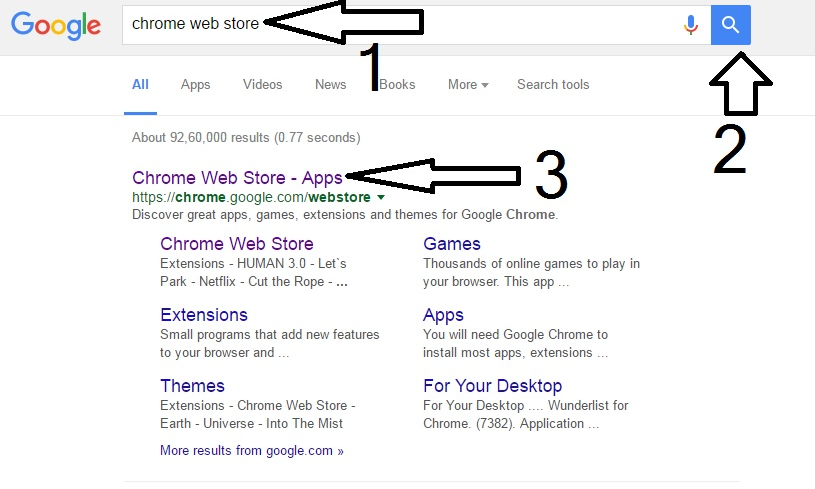
2) Open Google (www.google.com) and type Chrome web store
in the search bar and search. Click on the link that appears (https://chrome.google.com/webstore)
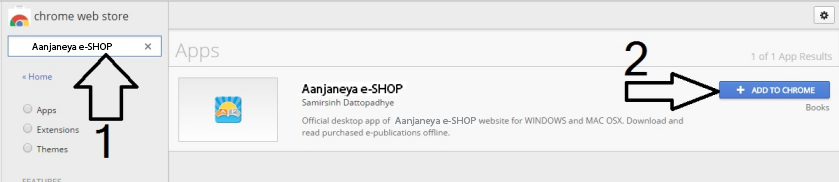
3) In the search box, type ‘Aanjaneya e-SHOP’ and press ‘Enter’. In the search results, you will
find ‘Aanjaneya e-SHOP’ chrome app. On the right hand side of the screen, besides ‘Aanjaneya App’ click on the ‘
+ Add to Chrome’ button.
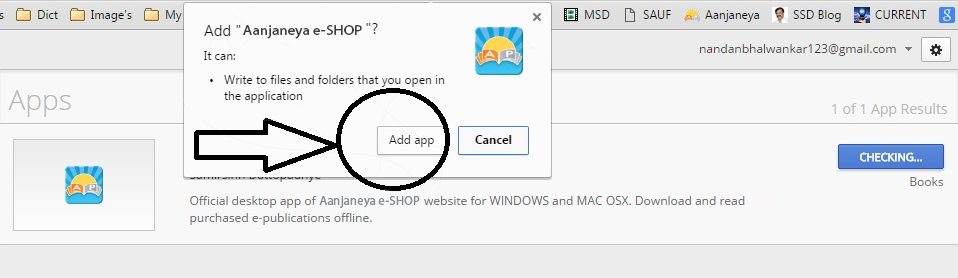
4) Click Add App from the popup that appears. Google Chrome web browser will now automatically install the same.
5) For opening the app, go to chrome://apps/and click Aanjaneya e-SHOP.
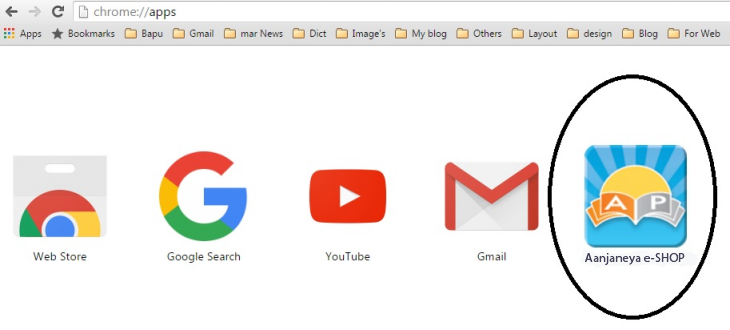
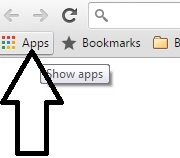
6) Alternately, open chrome web browser and click on Apps as shown below.
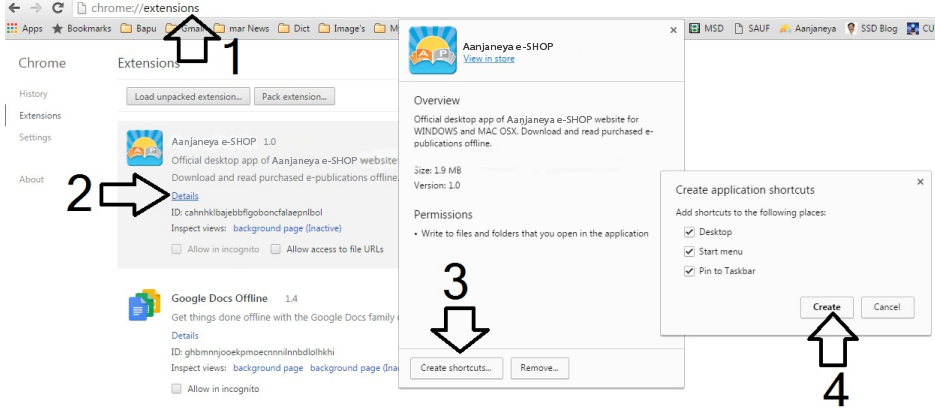
7) Also, to add desktop shortcut, you can go to chrome://extensions and click ‘Details’ under ‘Aanjaneya e-SHOP’. Then click ‘Create Shortcuts’. Check all the 3 items and then click ‘Create’.
Login to the App
You can login to the app by clicking on
Login link from top right corner using your login credentials of
Aanjaneya e-SHOP website. To create your own account,
please visit Aanjaneya e-SHOP website.
Sections Available in App
App has 2 main sections as follows:
All Books
- This section shows all available e-Publications.
- Without login, you can download demo version of the
e-Publications.
- After login, you can download full version of your
subscribed e-Publications.
- Once e-Publication is downloaded, the button changes to
Read. You can click on Read button to read the e-Publication.
My Books
- This section shows your subscribed e-Publications.
- You can download full version of the subscribed
e-Publications from this section.
- Once e-Publication is downloaded, the button changes to
Read. You can click on Read button to read the e-Publication.
e-Publication Info
Click on Info button to check more
information about the e-Publication.
Deleting the e-Publication
Click on Info button to check more
information about the e-Publication. The popup also has a delete
button to delete the downloaded e-Publication. Click the button
to delete the downloaded e-Publication.
Updating Chrome App to Latest Version
In case the Chrome App does not update automatically to the latest version (if available), follow below
steps:-
- Open Google Chrome Web browser
- Go to chrome://extensions
- Enable Developer Mode and click Update Extensions Now button
- Disable Developer Mode once the update is completed
Restart Crome App after Crash
In case the Chrome App crashes, it can be restarted again by following below steps:-
- Open Google Chrome Web browser
- Go to chrome://extensions
- Click on RELOAD link available next to Chrome App
